这篇文章写自英文,阅读原文章.
由于本文暂未被翻译成中文,请使用下面工具选项进行翻译
This post is written by Eric Douglas to remind myself to follow these guide lines
The intention of this article is to be a helpful reminder for those that use git to manage their projects.
If you are new to git, first read some contents listed in the References section, and then come back and use this article as a cheatsheet.
In front of the git commands, you’ll see some aliases from the oh-my-zsh cheatsheet.
Let’s get started!
Basic Commands
git config --global user.name "Your Name"git config --global user.email "youremail@example.com"git config --global core.editor <your favorite editor here>- Ex:
git config --global core.editor vim
- Ex:
git init: Start a new git repository.
Commit Structure
git status(gst): See the project status.- Working Areas:
- .git Directory
- Staging Area
- working Directory
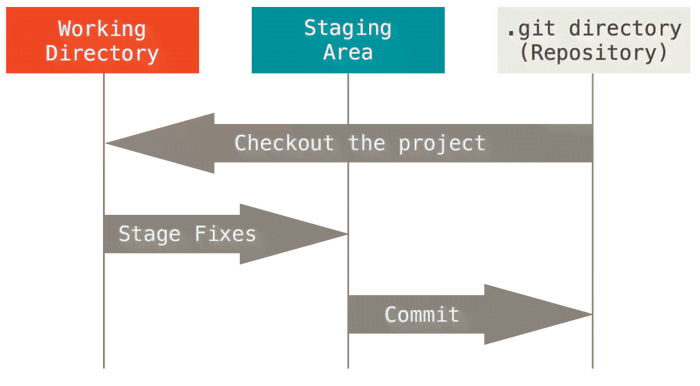
git add <filename>(ga): Add a file to the Staging Area.git add .(gaa): Add all files to the Staging Area.git add *.js: Add all.jsfiles to the Staging Area.git rm --cached <file>: Remove a new file from the Staging area.git commit -m "My first commit"(gcmsg): Create a commit with a message.git commit -v -a(gca):-vis verbose, shows the diff at bottom and more meaningful information.-ais likegit add .so it adds all files that have been modified and deleted, but new files you have not told Git about are not affected.
git help <command>: Open the manual for the respective command.git log(glg,glgg,glo,glog): Show all commits/history of the project.
Managing the Staging Area
git reset HEAD <filename>(grh): Remove a modified file from the Staging area.git reset HEAD(grh): Remove all modified files from the Staging area.git checkout <filename>(gco): Remove a modified file from the Staging area and undo its alterations.git commit -m "My first commit" --amend(``): Add the files/modifications in the Staging area in the last commit.git commit -v -a --amend(gca!): Add the files/modifications in the Staging area in the last commit.- PROTIP: don’t use
--amendafter send the modification to some remote repository. This command is just for local development. .gitignore: file that tells to git what files should not be tracked.- You can add a file that’s ignored with
git add <filename> -f
- You can add a file that’s ignored with
git diff <filename>(gd): Show the modifications in the current file based in its last commit.git diff(gd): Show the modifications in all files based in their last commit.git reset HEAD~2 --soft: Remove the last two commits from the project history but DO NOT DISCARD the modifications.git reset HEAD~2 --hard: Remove the last two commits from the project history but DISCARD the modifications and all new files that was created in such commits.git reset <commit> --soft --hard:--soft: Leaves all your changed files “Changes to be committed”.--hard: Any changes to tracked files in the working tree since<commit>are discarded.
git reflog: show all commits that were “deleted”.git merge <commit hash>: restore the commit.git add -i(ga -i): Open an interactive mode. REALLY USEFUL!- obs: use with the 4: add untracked option to
git addfiles quickly. 1 <enter>: Select file 1 to be added to the Staging area.1,3 <enter>: Select files 1 and 3 to be added to the Staging area.1-5 <enter>: Select files 1 to 5 to be added to the Staging area.-2 <enter>: Deselect file 2 to be added to the Staging area.-2-4 <enter>: Deselect files 2 to 4 to be added to the Staging area.
- obs: use with the 4: add untracked option to
git clean -f: Remove (delete) untracked files from the working tree.
Stashes and Branches
Stash
git stash(gsta): Remove all files in the Staging Area to the *”Stash Area”, that works as another type of *Working Area.git stash list: Show a list with all stashes.git stash apply: Return all files from the last created stash to the Staging Area.git stash apply stash@{2}: Return all files from thestash@{2}to the Staging Area.- obs:
stash@{0}is always the most recent stash.
- obs:
git stash clear: Clear all stashes.git stash save "name of the stash": Save a new stash with a particular name.git stash pop(gstp): Return all files from the last created stash to the Staging Area and remove the stash from the list.git stash drop(gstd): Remove the last created stash (stash@{0}) from the list. Be careful!git stash drop stash@{2}: Remove thestash@{2}stash from the list. Be careful!
Branch
git checkout -b develop(gco): Create a new branch called develop and change from the current branch to the develop branch.git branch(gb): List all branches.git checkout master(gcm): Switch for themasterbranch.git merge <branch>(gm): Merge a branch into another.gitk --all &: Open a GUI to visualize your branches and commits.- You can test GitKraken too :)
git rebase master: Add the modifications from themasterbranch into the current branch and move those alterations in the current branch to the top of what was added. ”…rewinding head to replay your work on top of it”git rebase --continue: after resolve conflicts.
git branch -d <branch>: delete a branch.-D: force to delete a branch.
PROTIP: one branch for each functionality or bugfix. There is no problem in create lots of branches!
git merge <branch> --squash: Concatenate several commits into one.--squashworkflow:
1 | # Go to the `master` branch |
Differences between
rebaseandmerge:- rebase:
- keeps the history in a linear fashion;
- destructive: remove the last commit and creates a new one;
- do not use this method if the commit is already in the remote server.
- merge:
- useful for keeping the forking history;
- creates a new commit to unify two branches.
- rebase:
Managing a Remote Repository
git remote add <name> <url>: Add a new remote repository that will be tracked.git remote rm <name>: Remove a remote repository.git push <remote> <remote-branch>(gp,ggp): Push local commits to a remote repository in the specified branch.git fetch <remote> <remote-branch>(gfa): Fetch new commits from a remote repository into a special branch<remote>/<branch>.git pull <remote> <remote-branch>(gl,ggl): Incorporates changes from a remote repository into the current branch. In its default mode,git pullis shorthand forgit fetchfollowed bygit mergegit pull --rebase(gup): Runsgit rebaseinstead ofgit merge.
More Useful Commands
git tag <name>: Create a new tag (e.g.v1.3).git push --tags: Push all tags to the remote repository.git push <tag>: Push a specific tag to the remote repository.
Git Workflow
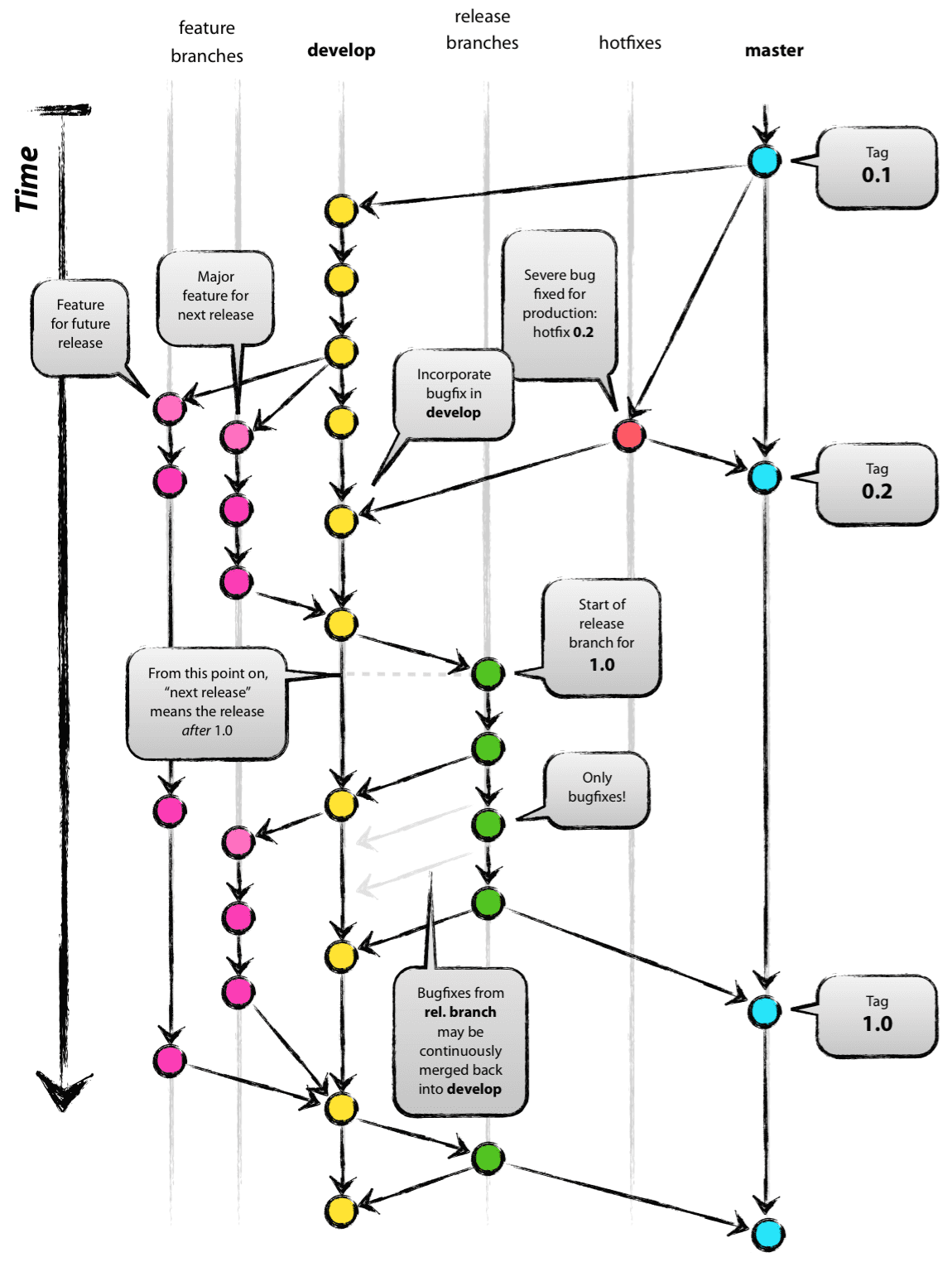
Types of branches:
master,develop,feature,release,hotfixMAIN BRANCHES
masterbranch:origin/master: always reflects a production-ready state.
developbranch:origin/develop: always reflects a state with the latest delivered development changes for the next release.
SUPPORTING BRANCHES
featurebranch:Comes from:
develop.Merge into:
develop.Name convention:
feature/feature-name.Create the branch:
1
git checkout -b feature/my-feature develop
Merge the branch (finishing the
featurebranch):1
2
3
4git checkout develop
git merge --no-ff feature/my-feature
git branch -d feature/my-feature
git push origin develop- The
--no-ffflag causes the merge to always create a new commit object. This avoids losing information about the historical existence of a feature branch and groups together all commits that together added the feature.
releasebranch:Comes from:
develop.Merge into:
developandmaster.Name convention:
release/release-v1.3.Create the branch:
1
2
3git checkout -b release/release-v1.3 develop
# Bump your software version to v1.3
git commit -a -m "Bumped version number to v1.3"- Merge the branch (finishing the
releasebranch):
1
2
3
4
5
6
7
8
9
10
11# Merge into master
git checkout master
git merge --no-ff release/release-v1.3
git tag -a v1.3
git push origin master && git push --tags
# Merge into develop
git checkout develop
git merge --no-ff release/release-v1.3
git branch -d release/release-v1.3hotfixbranch:Comes from:
master.Merge into:
developandmaster.Name convention:
hotfix/hotfix-v1.3.1.Create the branch:
1
2
3
4
5git checkout -b hotfix/hotfix-v1.3.1 develop
# Bump your software version to v1.3.1
git commit -a -m "Bumped version number to v1.3.1"
# After fix the bug
git commit -m "Fixed severe production problem"- Merge the branch (finishing the
hotfixbranch):
1
2
3
4
5
6
7
8
9
10
11
# Merge into master
git checkout master
git merge --no-ff hotfix/hotfix-v1.3.1
git tag -a v1.3.1
git push origin master && git push --tags
# Merge into develop
git checkout develop
git merge --no-ff hotfix/hotfix-v1.3.1
git branch -d hotfix/hotfix-v1.3.1